COMPASS works on computers, tablets and smartphones. This document is formatted for on-screen reading.
1. Introduction
COMPASS is the member administration of the Blue Knights European Conference. This manual gives an overview of everything a chapter can do in COMPASS. For the individual tasks there are short step-by-step guides (Use Cases) under Help & Docs – this manual links to them wherever they apply.
| Role | What it is for |
|---|---|
| Chapter Admin | Looks after the member data of the chapter, the chapter details and the Data Processing Agreement. |
| Treasurer | Keeps the Cash Book; read-only access to members and inventory. |
| Quartermaster | Manages the inventory; read-only access to members. |
2. Getting Started
- Access is granted after your chapter has nominated you – see Nominate Chapter Admins & Change of Officers.
- You sign in at members.blue-knights.eu with the personal email address in your member record. Function addresses (secretary@, president@ …) cannot be used to sign in.
- Two-factor authentication is optional but strongly recommended (Personal → My Profile).
- After 1 hour without activity you are signed out automatically. Forgot password? on the sign-in page sends a reset link valid for 1 hour.
3. Dashboard & Navigation
Dashboard
- Your account – the box at the top shows your name, the address you are signed in with, your role, your membership and whether 2FA is on. If something looks wrong, contact compass@blue-knights.eu.
- Key figures – your chapter, number of members, EC fee status, members without email address, members by status and average age.
- Upcoming birthdays (next 7 days) and membership anniversaries (10, 15, 20, 25, 30, 40, 50 years) of your chapter; the anniversary list can be downloaded as CSV or PDF.
Navigation
- MAIN – Dashboard, My Chapter, Members
- INVENTORY – Items, Sales, Yearly Report, Stocktake
- FINANCE – Cash Book
- PERSONAL – My Profile
- HELP & SUPPORT – Help & Docs, Feedback, Support & Contact, Changelog
The bar at the top shows live figures: USERS (portal accounts), ONLINE (active in the last 15 minutes) and MEMBERS (your chapter). The interface is in English – right-click → Translate page translates it into your language.
4. Your Chapter CHAPTER_ADMIN
My Chapter shows your chapter's logo, details, contact address and the Officers (President, Vice President, Secretary, Treasurer, Director, Past President). Edit chapter updates logo, details and address.
- Data Processing Agreement (DPA) – the banner shows whether your chapter has accepted the current version. How and why: Data Processing Agreement (DPA).
- Bank / SEPA details – reference data for your chapter's own records (account holder, IBAN, BIC, mandate reference). No payments are processed in COMPASS.
5. Members CHAPTER_ADMIN
Member List
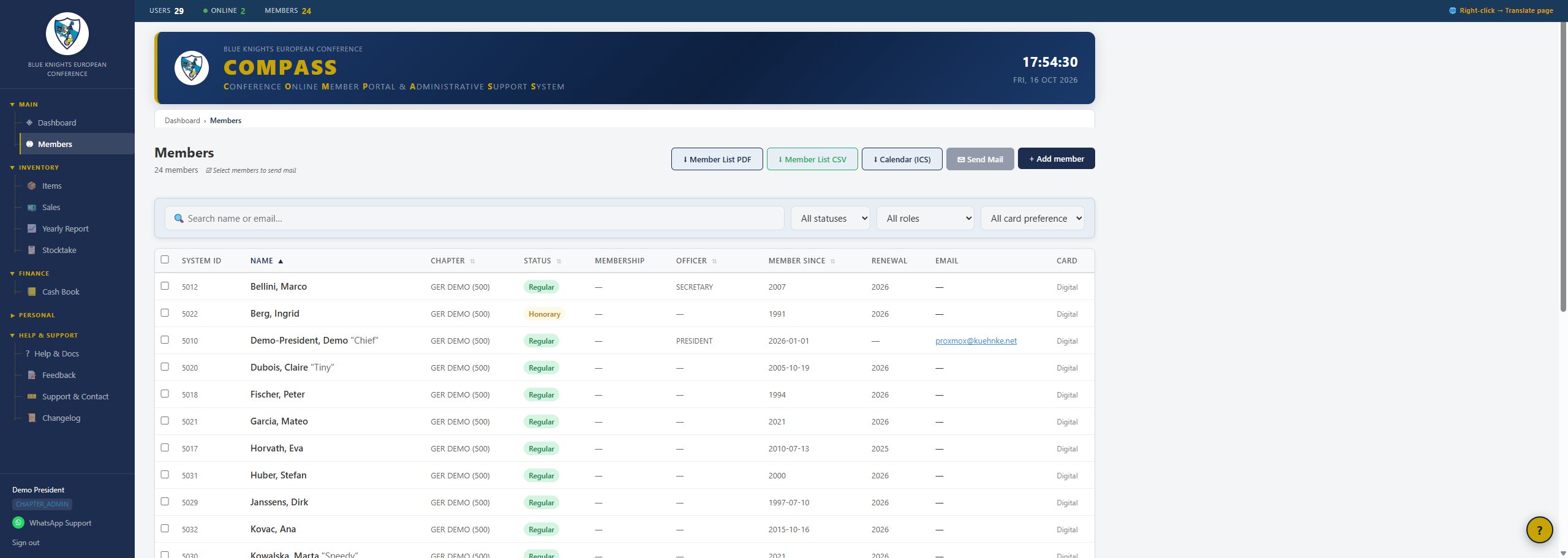
Member list with search, filters and bulk actions
- Search by name or email, filter by status, office or card preference, sort by column.
- Exports – member list as PDF or CSV, plastic card print order, ICS calendar of birthdays and anniversaries.
- Click a name to open the member – with contact details, membership card and History (every change, who and when).
Everyday Tasks
| Task | Step-by-step guide |
|---|---|
| A new member joins | Add New Member |
| Address, email, office or status changes | Edit Member Data |
| Information to all or selected members | Send Mail to Members |
| Sending the digital membership card | Digital Membership Card |
| Resignation, death or other departure | End Membership |
Self-Service Update
Members can update their own address, phone numbers, nickname and photo without an account at members.blue-knights.eu/my-data. They receive a link (valid for 30 minutes) at the email address on file. Membership data and the email address itself stay under your control. Every self-service change is shown in the member's History, and your chapter is informed by email.
Newsletter
Members with a valid email address in COMPASS receive the newsletter of the European Conference. Email changes in COMPASS are transferred overnight – please correct email addresses in COMPASS only. Members can unsubscribe at any time via the link in every newsletter.
6. Inventory CHAPTER_ADMIN · QUARTERMASTER
Optional: tracks the items your chapter keeps in stock – vests, patches, pins and similar. Inventory is separate from the Cash Book: a sale here does not create a Cash Book entry.
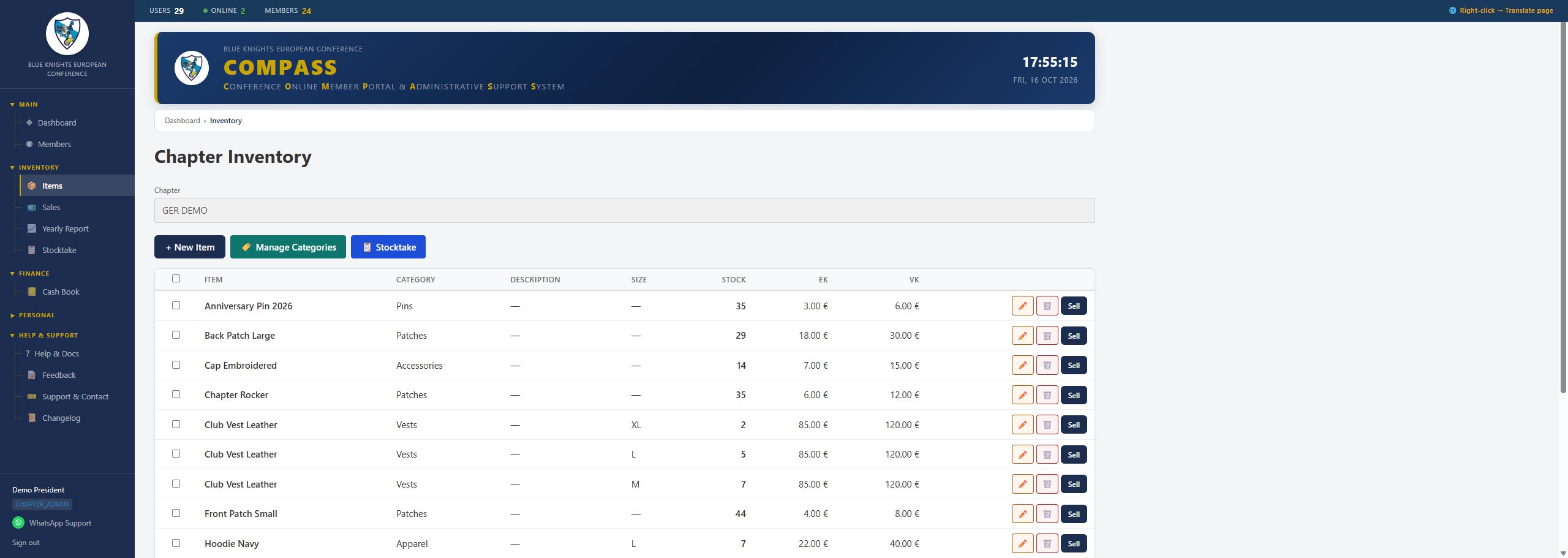
Chapter Inventory – items with category, stock and pricing
- Items – New Item with name, category (Manage Categories), description, size, purchase and sale price. To record a delivery, set Stock to the new total.
- Sales – Sell next to an item: quantity, price, buyer, date. The stock is reduced and the sale appears in the item's sales history.
- Stocktake – list of all items with stock and stock value, for the physical count.
- Yearly Report – purchases, sales and difference for a year, with CSV export.
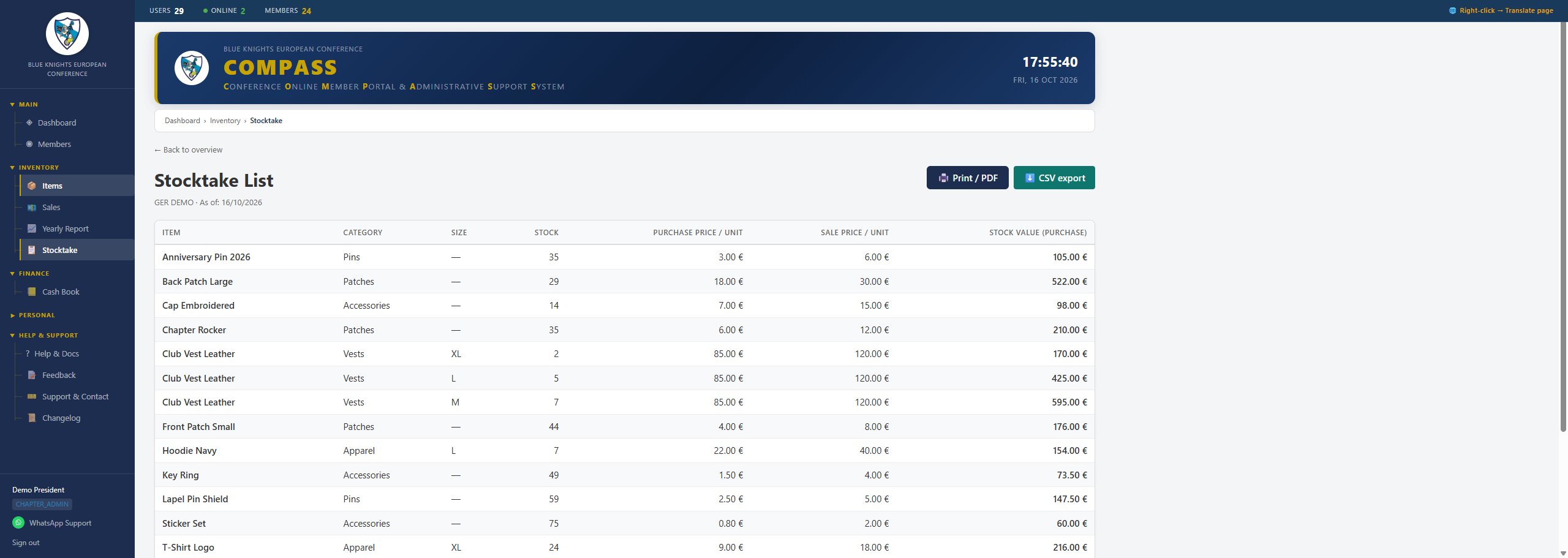
Stocktake – stock value per item and grand total
7. Cash Book TREASURER · CHAPTER_ADMIN read-only
Optional: the electronic ledger for your chapter's petty cash, as support for the annual cash audit. The Treasurer records entries; the Chapter Admin can view and export.
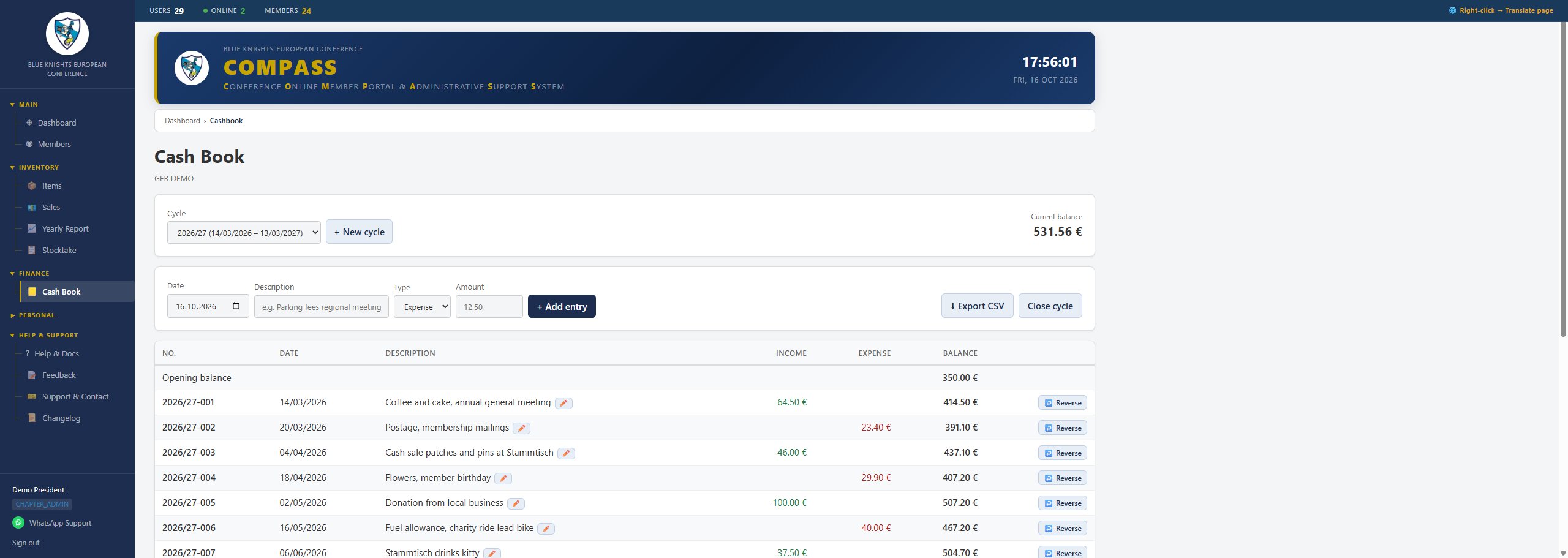
Cash Book – entries with income, expense and running balance
- Cycles – a cycle runs from one Annual General Meeting to the next, with label, dates and opening balance.
- Entries – date, description, income or expense, amount; each entry gets a number such as 2026/27-001 to write on the receipt.
- Corrections – entries are never deleted: a wrong entry is cancelled by a reversal; corrected descriptions are logged and shown permanently.
- Closing – after the audit, a cycle is closed and becomes read-only; the next cycle starts with its final balance.
- CSV export – for your records or the auditor; opens directly in Excel.
8. Profile, Support & Help
- My Profile – change your password, enable two-factor authentication, and create a personal calendar feed of your chapter's birthdays and anniversaries (it can be revoked at any time).
- Support & Contact – report a problem, ask a question or suggest an improvement.
- Help & Docs – this manual, the step-by-step guides and the GDPR Position Statement.
- Changelog – all changes to COMPASS, newest first.
- Questions: compass@blue-knights.eu
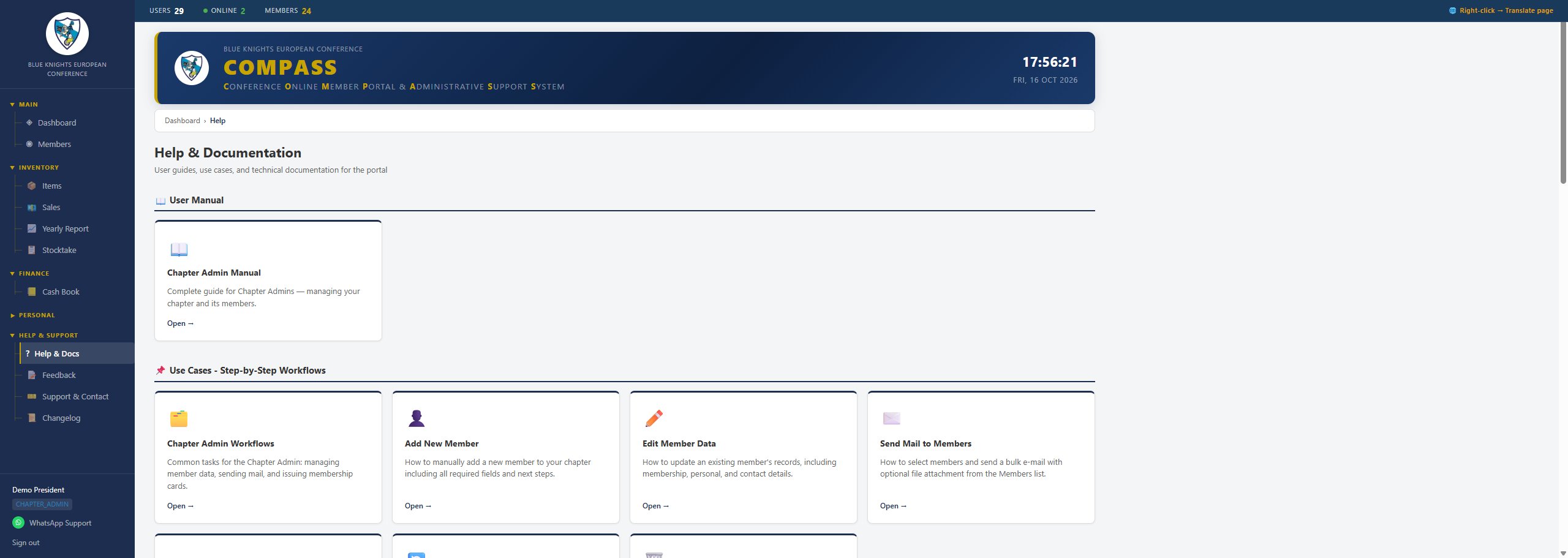
Help & Docs – document categories